

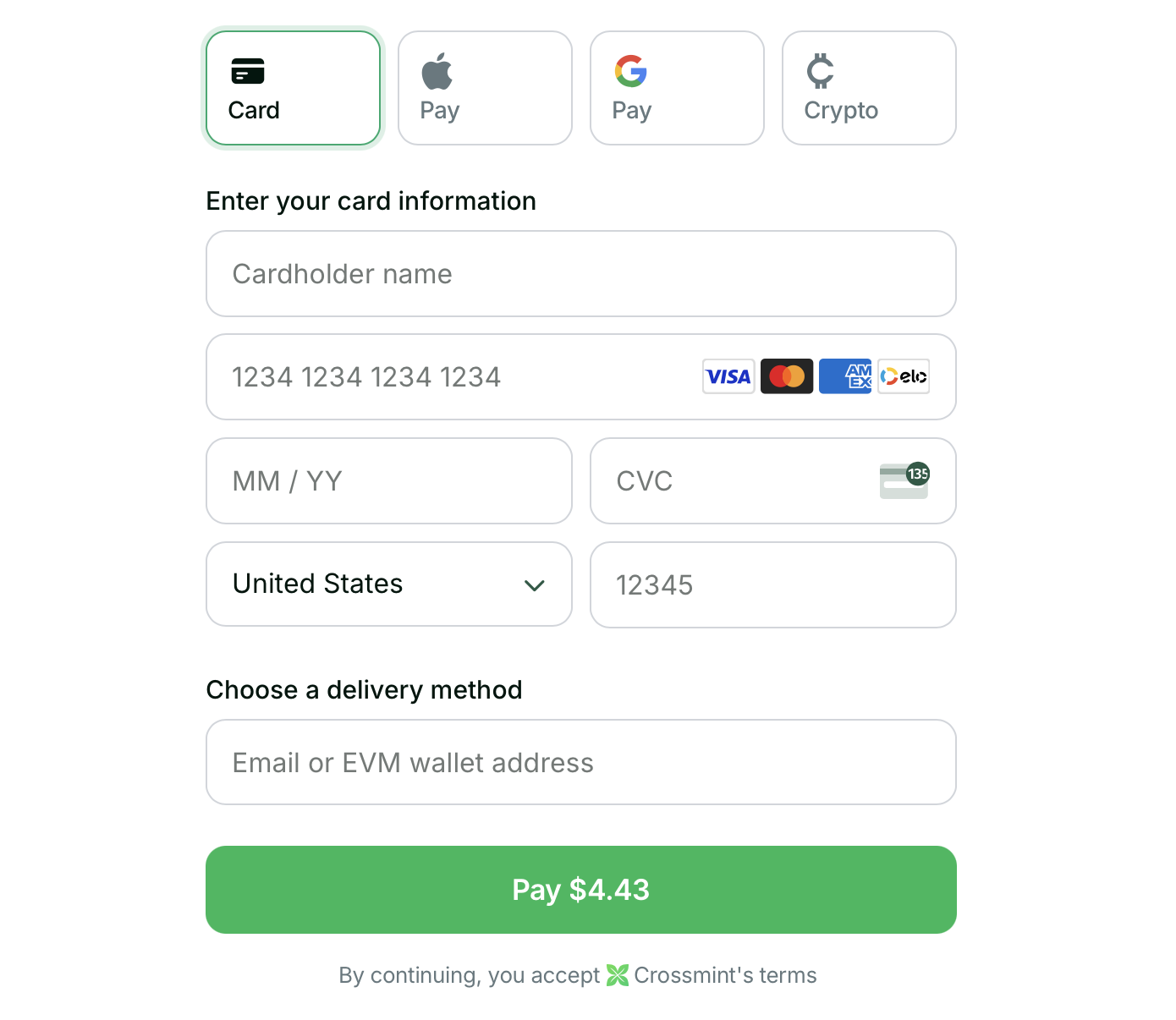
You will build this demo
Introduction
In this guide, you will create a web app with Next.js which allows customers to buy NFTs with credit card and crypto payments, using Crossmint’s embedded checkout. Crossmint also supports payments for crypto onramp, memecoins, and other onchain assets (ERC20 tokens, ERC721 tokens, and ERC1155 tokens). If you want to get started immediately, you can clone a repo with a functioning embedded checkout here: https://github.com/Crossmint/crossmint-embedded-demo. If you want to get started step by step, continue following the guide below.From Crossmint
- Create a developer account in the Staging Console.
- Create a new collection or import yours into the console, and have your
collectionIdready.- Make sure you follow the maximum prices for collections set in staging outlined here.
- Create a client-side API key with the
orders.createscope enabled. More info on creating API keys here.
To integrate in production/mainnet, you'll also need to complete account and collection verification. More
information in the production launch guide.
For Marketplaces and Launchpads: You do not need to create a collection (skip Step 2).Simply use
tokenLocator instead of collectionLocator in the examples.
It is recommended to test tokenlocator in the production environment.See Marketplaces & Launchpads guide for more secondary-sale specific details.Integration Steps
This guide will start from scratch with an empty Next.js application. You'll install the required@crossmint/client-sdk-react-ui dependency and add the embedded checkout component. To get started:
Set up the Project
1
Create a new Next.js application
y and press Enter to proceed:2
Name your app `crossmint-embedded-checkout-demo` and accept the default options
3
Change into the directory created in previous steps
4
Install @crossmint/client-sdk-react-ui
5
Open the project in your preferred code editor
Basic Integration
Perfect for getting started quickly with a simple checkout flow.1
Add environment variables
Create
.env.local in your project root:2
Create the checkout page
Replace your home page (e.g
{root_dir}/app/page.tsx) with:3
Run your app
Navigate to the directory your package.json is to run the appVisit website (e.g
http://localhost:3000) to see your checkout!Advanced Integration
Need purchase tracking, multiple NFT purchases at once, or more customization? Here’s a complete setup with additional features:This advanced example showcases: - Multiple NFTs in one checkout - Purchase status tracking - Preferred payment
methods and currencies - Email-based NFT delivery - Language settings Learn more in our guides: - Payment
Methods - Multi-purchases -
React Hooks
Testing Your Integration
This demo uses the staging environment: - Use test credit
cards for payments - Get test USDC from our
faucet - Check price
limits for staging
All Set!
You’ve successfully integrated card and crypto payments with the Crossmint Embedded Checkout!Remember this demo is built on staging, so the digital assets will show up on the testnets. To launch on production,
check the production launch checklist. You will need to contact
Sales to enable the embedded checkout on production.
Next Steps
Customize the UI and Behavior Further
UI Customization
Learn how to customize the look and feel of your checkout
Payment Methods
Configure available payment options for your users
React Hooks
Use React hooks to build custom checkout experiences